

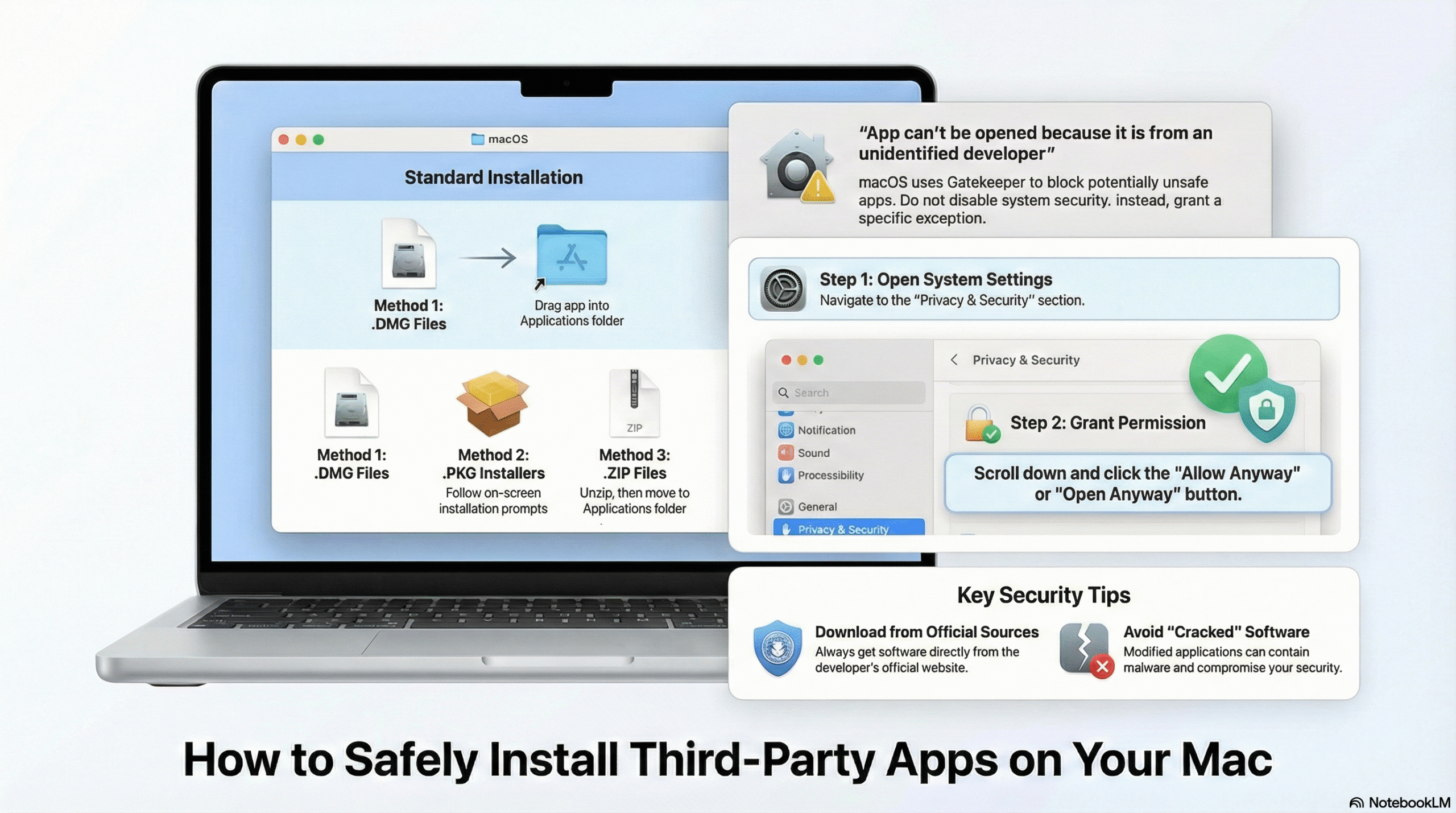
How to Install Third Party Software in Mac
How to install third party software in Mac this is a very common concern for users who download applications outside the Mac App Store. macOS is designed with strong security protections, which means installing external apps requires a few extra steps.
This guide explains the correct and safe way to install third-party applications on macOS without disabling system security.
Why macOS Blocks Some External Applications
Apple uses a security feature called Gatekeeper to prevent unverified software from running automatically. While this protects users from malware, it can also block legitimate tools such as PDF editors, developer utilities, and design software.
Knowing the proper installation process helps you use professional tools without errors or warnings.
System Requirements Before Installation
Before installing any external application, make sure your Mac meets these basic requirements:
- macOS 10.14 or later
- Administrator account access
- At least 2 GB free disk space
- Stable internet connection
- Software downloaded from a trusted source
Meeting these requirements ensures smooth installation and performance.
Install Third Party Software Using DMG Files
DMG installers are the most common format on macOS.
Steps:
- Download the .dmg file from the official website.
- Open the file to mount it.
- Drag the application into the Applications folder.
- Eject the installer window.
- Launch the app normally.
This method works for most professional macOS applications.
Install Software Using PKG Installers
Some applications use a guided installation package.
Steps:
- Open the .pkg file.
- Follow the on-screen instructions.
- Enter your Mac password when prompted.
- Complete the setup and open the application.
PKG installers are commonly used for utilities that integrate deeply with macOS.
Allow Blocked Apps from Security Settings
If macOS blocks an app from opening:
- Open System Settings → Privacy & Security
- Scroll to the Security section
- Click Allow Anyway
- Reopen the app and confirm
This step does not disable system protection and is safe for trusted software.
Installing Apps from ZIP Files
ZIP files are compressed application packages.
Steps:
- Extract the ZIP file.
- Move the app to the Applications folder.
- Open the application like any other macOS app.
Terminal Installation (Advanced Users Only)
Some developer tools require command-line installation.
chmod +x filename
./filename
Use this method only when the source is verified and documented.
Common Errors and Quick Fixes
“App Is Damaged”
Run this command in Terminal:
xattr -cr /Applications/AppName.app“Unidentified Developer”
Allow the app from Privacy & Security settings.
Security Tips for Third-Party Apps
- Download only from official websites
- Avoid cracked or modified software
- Review permissions after installation
- Keep macOS updated
For official Apple security guidance, visit
https://support.apple.com (nofollow)
For macOS developer safety documentation, see
https://developer.apple.com (nofollow)
The “Right-Click” Shortcut for Unidentified Developers
While navigating to System Settings is the official method to approve an app, there is a much faster shortcut preferred by power users. If you receive a warning that an app “cannot be opened because the developer cannot be verified,” you can bypass this in seconds:
- Locate the app icon in your Applications folder.
- Hold down the Control key and click the app icon (or Right-Click).
- Select Open from the context menu.
- A popup will appear asking if you are sure. Click Open again.
This creates a permanent exception for that specific application, allowing it to open normally in the future without disabling your general security settings.
Managing Folder or App Permissions Post-Installation
Installing the software is only the first step. Modern versions of macOS (like Sequoia and Sonoma) isolate applications for privacy. Once you launch a third-party tool—especially video editors, PDF tools, or screen recorders—it may ask for specific access.
- Files and Folders: Required to save or open documents on your Desktop or Documents folder.
- Screen Recording: Essential for apps that capture your screen or facilitate screen sharing.
- Accessibility: Often needed for productivity tools that use shortcuts or modify inputs.
If an app isn’t working correctly, check System Settings > Privacy & Security. Ensure the toggles next to the application name are turned ON. Denying these permissions can cause the software to crash or fail to save your work.
How to Uninstall Third-Party Apps Completely
Unlike Mac App Store applications, third-party software often leaves “leftover” files behind if you simply drag the icon to the Trash. To maintain a clean system:
- Check for an Uninstaller: Open the original .dmg file or the app’s folder to see if an “Uninstall [App Name]” tool is included.
- Library Cleanup: Many apps store cache and preferences in your hidden Library folder. If you are comfortable, check
~/Library/Application Support/and remove folders matching the app name. - Use a Cleaner Tool: For a hassle-free experience, free utilities like AppCleaner are highly recommended. You simply drag the app into the utility, and it finds all associated files to delete them instantly.
Keeping Third-Party Software Updated
Apps downloaded from the App Store update automatically in the background, but third-party software requires manual attention. Most professional applications include a built-in update checker.
- Open the application.
- Click the App Name in the top menu bar.
- Select Check for Updates.
Running the latest version is critical not just for new features, but for patching security vulnerabilities that could compromise your Mac.
Final Thoughts
Installing apps outside the Mac App Store is completely safe when done correctly. By following the approved methods and macOS security prompts, you can use powerful third-party tools without compromising system safety.
This approach keeps your Mac secure, flexible, and fully productive.