
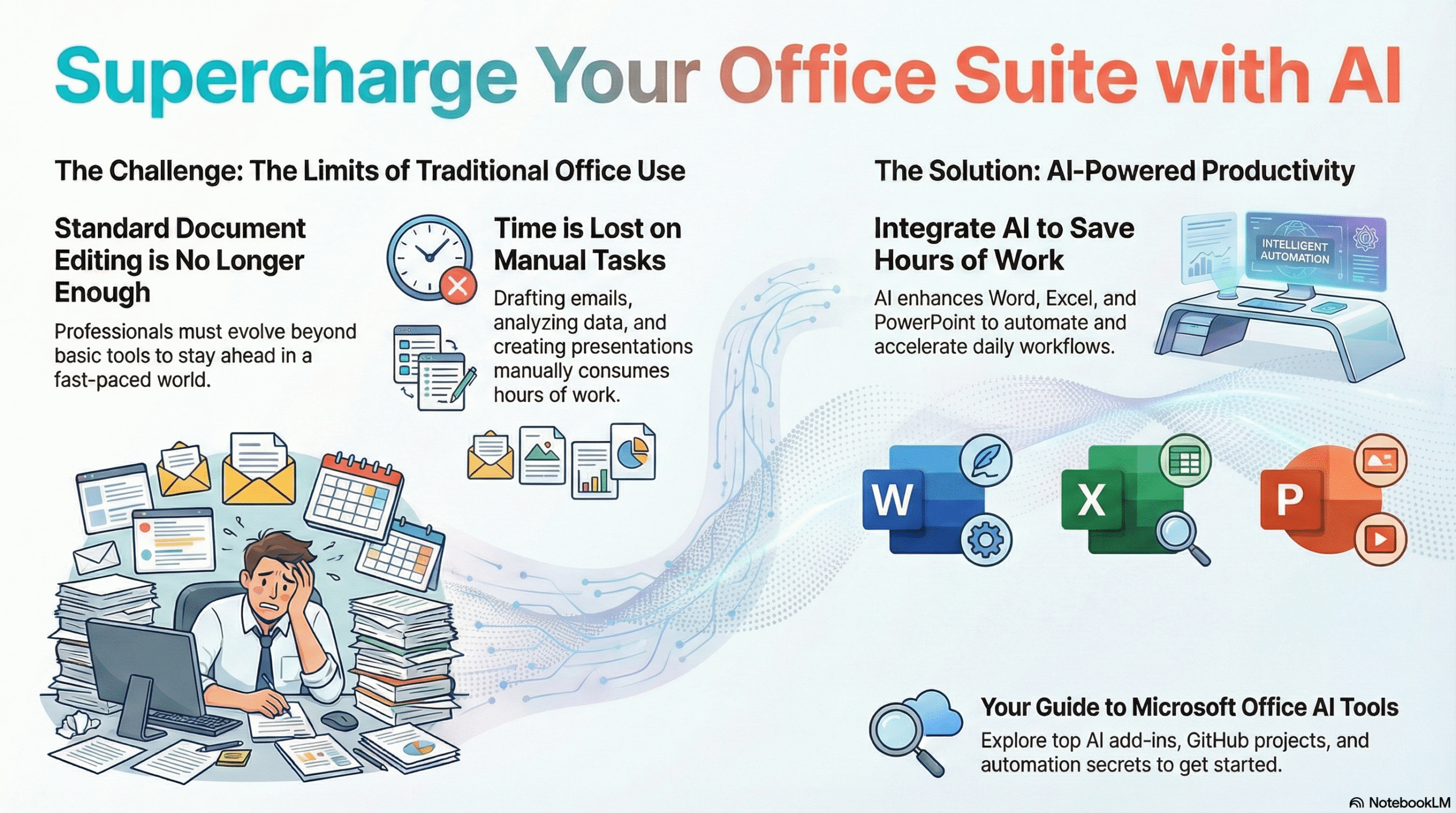
Microsoft Copilot Cowork is an agentic work experience that can plan and carry out multi-step tasks across Microsoft 365, while pausing for your approval before important actions. Instead of only suggesting what to do, it can prepare documents, organize information, draft communications, schedule meetings, and coordinate work across apps. Microsoft made Copilot Cowork generally available worldwide on June 16, 2026, for eligible Microsoft 365 Copilot customers.
This guide explains how Copilot Cowork works, what it can and cannot do, its licensing and usage-based cost model, how to start safely, and which tasks are worth delegating. It is written for business users and administrators who want practical value without handing an AI system more access than necessary.
What Is Microsoft Copilot Cowork?
Microsoft Copilot Cowork is designed for complex, long-running work that involves several steps, sources, or Microsoft 365 apps. You describe the outcome, Cowork creates a plan, uses permitted work context and tools, shows progress, asks for clarification when needed, and returns finished artifacts for review.
Microsoft’s official Copilot Cowork overview says it can work with Outlook, Teams, Word, Excel, PowerPoint, OneDrive, SharePoint, calendars, and organizational search. Examples include preparing a meeting packet, creating a project update, organizing an inbox, comparing files, scheduling recurring prompts, or producing a connected set of documents from company information.
That makes Cowork different from a normal chatbot. A chat response ends with text; an agentic workflow may continue in the background and perform approved actions. If you need a broader introduction to Microsoft’s productivity AI ecosystem, see our guide to the top Microsoft Office AI tools.
Copilot Chat vs Cowork vs a Custom AI Agent
| Option | Best for | Action level | Control model |
|---|---|---|---|
| Copilot Chat | Questions, summaries, drafts, and analysis | Mostly conversational assistance | User reviews the answer |
| Copilot Cowork | Multi-step work across Microsoft 365 | Plans, creates artifacts, and proposes actions | Checkpoints and approval before important actions |
| Custom agent or workflow | Specialized processes and non-Microsoft systems | Depends on connected tools and permissions | Designer defines tools, validation, and approval logic |
Cowork is attractive when most of your work already lives in Microsoft 365. A custom workflow may be better when you need precise branching, custom APIs, or systems outside Microsoft’s environment. Our n8n AI agent tutorial demonstrates that more configurable approach with explicit tools, structured output, testing, and human approval.
How Microsoft Copilot Cowork Works
1. You Describe an Outcome
Start with a deliverable rather than a vague request. “Prepare a customer-renewal briefing using the latest approved account documents, list open risks, and draft a follow-up email for my approval” gives Cowork a destination, scope, sources, and required outputs.
2. Cowork Builds a Plan
Cowork breaks the request into steps. It may locate permitted files, review recent email or meeting context, analyze data, create documents, and prepare proposed actions. Microsoft describes Work IQ as the context layer that grounds tasks in emails, meetings, files, and business information the user is allowed to access.
3. It Uses Skills, Apps, and Approved Context
The system selects capabilities required for the task. Cowork can create Word documents, Excel spreadsheets, PowerPoint presentations, and PDFs; draft Outlook messages; post to Teams; search organizational resources; and manage files. Available capabilities can vary with licensing, tenant configuration, region, rollout stage, and administrator policy.
4. You Review Checkpoints and Actions
Cowork is not supposed to silently send every message or apply every major change. Microsoft’s official Cowork product documentation states that it pauses for approval at important checkpoints. Users should inspect recipients, attachments, dates, file destinations, and changes before approving an external or irreversible action.
5. Cowork Returns Finished Work
The result may be a briefing document, spreadsheet, presentation, scheduled meeting, draft email, or coordinated group of artifacts. “Finished” does not mean infallible. A person remains responsible for verifying facts, calculations, tone, permissions, and business consequences.
Microsoft Copilot Cowork Requirements and Availability
Microsoft announced worldwide general availability on June 16, 2026. According to Microsoft’s general-availability and pricing announcement, Cowork requires a Microsoft 365 Copilot User Subscription License. Cowork usage is then billed separately through Copilot Credits, based on the work performed.
Availability to an individual user is not automatic. Microsoft says Cowork is off by default and administrators decide when to enable it, which users or groups receive access, and how much they can spend. Some features may remain in Frontier or roll out separately, so the exact interface can differ between tenants.
- An eligible organizational Microsoft 365 environment;
- a Microsoft 365 Copilot user license;
- administrator-enabled Cowork access;
- a configured Copilot Credit billing arrangement and budget;
- appropriate Microsoft 365 permissions for the data and apps involved;
- supported region, cloud environment, and feature rollout.
Office 2024 and Microsoft 365 are not interchangeable here. Office 2024 is a perpetual desktop suite, while Cowork depends on the Microsoft 365 Copilot service and organizational cloud context. Our Office 2024 versus Microsoft 365 overview can help clarify the product difference.
Copilot Cowork Pricing and Copilot Credits
Cowork does not use a simple unlimited flat-rate model. Microsoft describes usage-based billing in Copilot Credits. Task cost depends on four inputs: model use, context retrieval, tool calls, and runtime. A short task using one source should consume less than a long task that searches many sources, reasons deeply, and creates several outputs.
| Task pattern | Typical characteristics | Cost-control idea |
|---|---|---|
| Light | Few sources, limited reasoning, one or no artifact | Use a narrow prompt and required output |
| Medium | Several sources, structured analysis, multiple outputs | Limit date range, folders, and deliverables |
| Heavy | Broad research, deeper reasoning, many artifacts or actions | Approve a plan first and set a user budget |
Microsoft offers pay-as-you-go and prepaid commitment options. Its June 2026 announcement listed PayGo at $0.01 per Copilot Credit, but organizations should verify current regional pricing and contract terms before budgeting. Administrators can set limits at tenant, group, and user levels, configure alerts, review usage, and handle user requests for additional credits.
Do not treat promotional efficiency claims as guaranteed savings. Your cost depends on task design, model selection, source volume, tool calls, retries, and runtime. Run a controlled pilot and compare the value of completed work with the actual credits consumed.
How to Start Using Copilot Cowork Safely
Step 1: Ask Your Administrator to Confirm Eligibility
Before searching for a button, confirm that the tenant has Microsoft 365 Copilot licenses, Cowork enabled, a billing policy, and available credits. If Cowork does not appear in the Microsoft 365 Copilot app, an administrator setting, licensing condition, or rollout limitation may be the reason.
Step 2: Choose a Low-Risk Pilot Task
Start with read-heavy work that produces a draft rather than immediately changing business records. Good pilots include summarizing a controlled set of documents, preparing a meeting briefing, comparing approved files, or creating a first draft of a weekly update.
Step 3: State Scope and Sources
Tell Cowork which team, folder, account, project, or date range to use. Explicitly exclude confidential or unrelated locations. Clear boundaries reduce irrelevant retrieval and unnecessary credit consumption.
Step 4: Specify the Deliverables
Name the required output format and destination. For example: “Create a two-page Word briefing and a five-slide PowerPoint. Save both in the Project Alpha/Review folder. Do not send messages or change calendar events.”
Step 5: Review the Plan Before Execution
Check whether the plan accesses the right sources, uses appropriate apps, and avoids unnecessary actions. If the task is too broad, revise it before Cowork spends credits or creates many artifacts.
Step 6: Inspect Every Approval Request
For email, Teams posts, meeting changes, file moves, or business-system updates, review the exact recipient, content, time, destination, and side effects. Approval should be meaningful, not a reflexive click.
Step 7: Validate the Result
Check source documents, numbers, formulas, dates, names, claims, and links. Confirm that sensitivity labels and sharing permissions are correct. Ask a subject-matter owner to review work that affects customers, finance, compliance, legal obligations, or public communication.
Five Practical Copilot Cowork Use Cases
Meeting Preparation
Ask Cowork to gather relevant emails, recent meetings, approved account files, and action items, then create a briefing document and a draft agenda. Keep the source list limited to a named customer or project.
Inbox and Follow-Up Triage
Cowork can help identify messages that need attention and draft responses. Begin in draft-only mode. Do not allow automatic sending until accuracy, routing, and tone are consistently acceptable.
Project Status Reporting
Provide the project folder, reporting period, status template, and required metrics. Cowork can compile a report and draft a Teams update, but the project owner should verify milestones, blockers, and dates.
Document Comparison
Use Cowork to compare named versions of contracts, product specifications, policies, or procedures and produce a change table. For legal or regulated material, treat the output as an assistant’s summary, not professional approval.
Recurring Briefings
Microsoft documents scheduled prompts for repeated work. A weekly briefing can summarize a controlled set of updates, but administrators should monitor recurring credit usage and users should periodically confirm that sources and recipients remain correct.
Security, Privacy, and Governance Checklist
- Apply least-privilege access before enabling Cowork.
- Review overshared SharePoint sites and OneDrive folders.
- Use groups to pilot access with a small, trained audience.
- Set tenant, group, and user spending limits.
- Configure usage and budget alerts.
- Review audit logs and approval history.
- Preserve sensitivity labels and data-lifecycle policies.
- Test prompts containing ambiguous or conflicting instructions.
- Require human review for messages, file changes, calendar changes, and external actions.
- Define prohibited data and high-risk business processes.
Existing permissions are a foundation, not a guarantee of good data hygiene. If a user can already access an overshared folder, Cowork may be able to use that accessible content. Clean up permissions and information architecture before broad deployment.
This is the same distinction explained in our AI versus automation guide: AI can interpret and plan, while workflow controls, permissions, approvals, and monitoring make execution safer and repeatable.
Common Problems and Fixes
Cowork Does Not Appear
Confirm the user license, tenant enablement, billing policy, assigned group, supported region, and rollout status. Contact the organization’s Microsoft 365 administrator before assuming the desktop app is broken.
The Plan Is Too Broad
Narrow the source locations, reporting period, audience, and outputs. Split a large assignment into stages and review the first deliverable before allowing later actions.
Results Include Wrong or Old Information
Specify authoritative folders and document versions. Ask for a source list and verify timestamps. Archive outdated files or remove ambiguous duplicates from shared locations.
Credit Usage Is Higher Than Expected
Reduce the number of sources and artifacts, avoid unnecessary retries, use a clearer prompt, and test with a smaller dataset. Administrators should inspect usage reports by user, group, and feature.
Users Approve Without Reviewing
Train users on the consequences of each action type. Require higher scrutiny for external recipients, file permission changes, calendar invitations, financial information, and public-facing content.
Three Copy-Ready Cowork Prompt Templates
Customer Meeting Brief
Using only files and messages related to [Customer] from the last 90 days, create a two-page Word briefing with objectives, open decisions, risks, and five discussion questions. List every source used. Save the draft in [Folder]. Do not send email or change calendar events.
Weekly Project Update
Review approved Project Alpha documents and Teams updates from this week. Create a status report with completed work, blockers, owners, deadlines, and decisions needed. Flag conflicting dates instead of choosing one. Draft a Teams post, but wait for approval before sending it.
Document Comparison
Compare [Version A] and [Version B]. Create a table showing added, removed, and changed requirements, with page references. Do not provide legal conclusions. Save the comparison in [Review Folder] and ask for approval before sharing it.
Replace every bracketed field, limit the source locations, and keep the first run in draft-only mode. After the task finishes, record the credits consumed, corrections required, and time saved. Those three observations are enough to decide whether the workflow deserves a broader pilot.
Frequently Asked Questions
Is Microsoft Copilot Cowork generally available?
Yes. Microsoft announced worldwide general availability on June 16, 2026, for eligible Microsoft 365 Copilot customers. Actual user access still depends on licensing, tenant enablement, billing, region, and feature rollout.
Is Copilot Cowork included free with Microsoft 365?
No. Microsoft’s launch documentation says Cowork requires a Microsoft 365 Copilot User Subscription License and uses separate usage-based Copilot Credits. Verify current commercial terms with Microsoft or your licensing provider.
Can Cowork send email and schedule meetings?
Microsoft lists Outlook email and calendar actions among Cowork’s capabilities. It is designed to present approval checkpoints before important actions, and organizations can apply additional policies and permissions.
Does Cowork replace Power Automate or n8n?
Not completely. Cowork is useful for flexible, context-rich work across Microsoft 365. Deterministic automation platforms remain better for exact triggers, validation rules, predictable integrations, and repeatable processes where every step must be defined.
Can Cowork access every company file?
It operates within the user’s permissions and organizational controls. That is why least-privilege access, SharePoint governance, sensitivity labels, and auditing matter before deployment.
Should small businesses use Copilot Cowork?
It can be useful for Microsoft-centric teams with recurring knowledge work, but the organization should first confirm licensing, expected credit use, data readiness, and a measurable pilot task. It is not automatically cost-effective for every workflow.
Final Verdict
Microsoft Copilot Cowork moves Copilot from answering questions toward executing multi-step work across Microsoft 365. Its strongest use cases combine trusted organizational context, clear deliverables, and meaningful human checkpoints. Start with a narrow read-heavy pilot, measure accuracy and credit usage, correct permission problems, and expand only after the workflow consistently produces reviewable value.