

How to Install CapCut on PC Without Emulator (2026 Official Guide)
Are you tired of using laggy emulators like BlueStacks just to edit videos on your laptop?
For a long time, video editors had to rely on heavy Android emulators to run CapCut on Windows. But that has changed. ByteDance (the developer) has released an official desktop version of CapCut that runs smoothly on Windows and Mac—no emulator required.
In this guide, I will show you exactly how to download and install CapCut on your PC directly. This method is faster, lag-free, and officially supported.
Why You Should Stop Using Emulators for CapCut
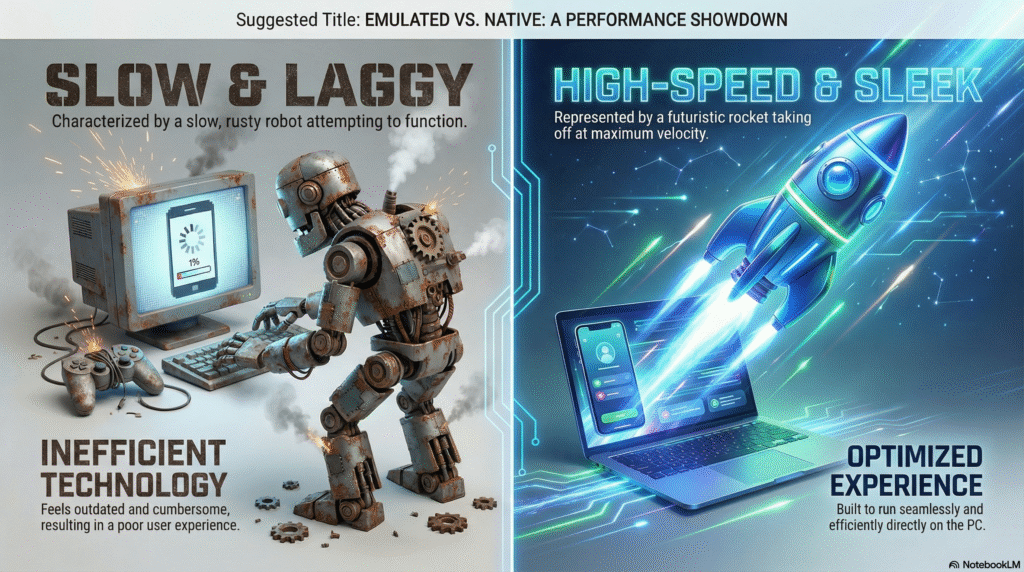
Before we jump into the installation, it’s important to understand why the “No Emulator” method is better:
- Better Performance: Emulators consume a lot of RAM. The official PC version is optimized for your hardware.
- Keyboard Shortcuts: You get professional shortcuts (Ctrl+Z, Ctrl+C) which are hard to use on emulators.
- 4K Export: The desktop version handles high-resolution export much better than a mobile app running on PC.
Minimum System Requirements (2026)
To run CapCut smoothly on your desktop, ensure your system meets these minimum specs:
- OS: Windows 10 (Version 1903 or later) or Windows 11.
- Processor: Intel Core i3 or AMD Ryzen 3 (Core i5 recommended).
- RAM: 4GB (8GB recommended for 4K editing).
- Graphics: Intel HD Graphics 4000 or later (NVIDIA/AMD GPU recommended).
- Storage: At least 2GB of free space.
Method 1: Install CapCut from Microsoft Store (Easiest Way)
This is the safest and fastest way to get CapCut on Windows.
1: Click on the Start button and search for “Microsoft Store”.
2: In the search bar at the top, type “CapCut”.
3: Look for the official app named “CapCut – Video Editor”.
4: Click on the “Get” or “Install” button.
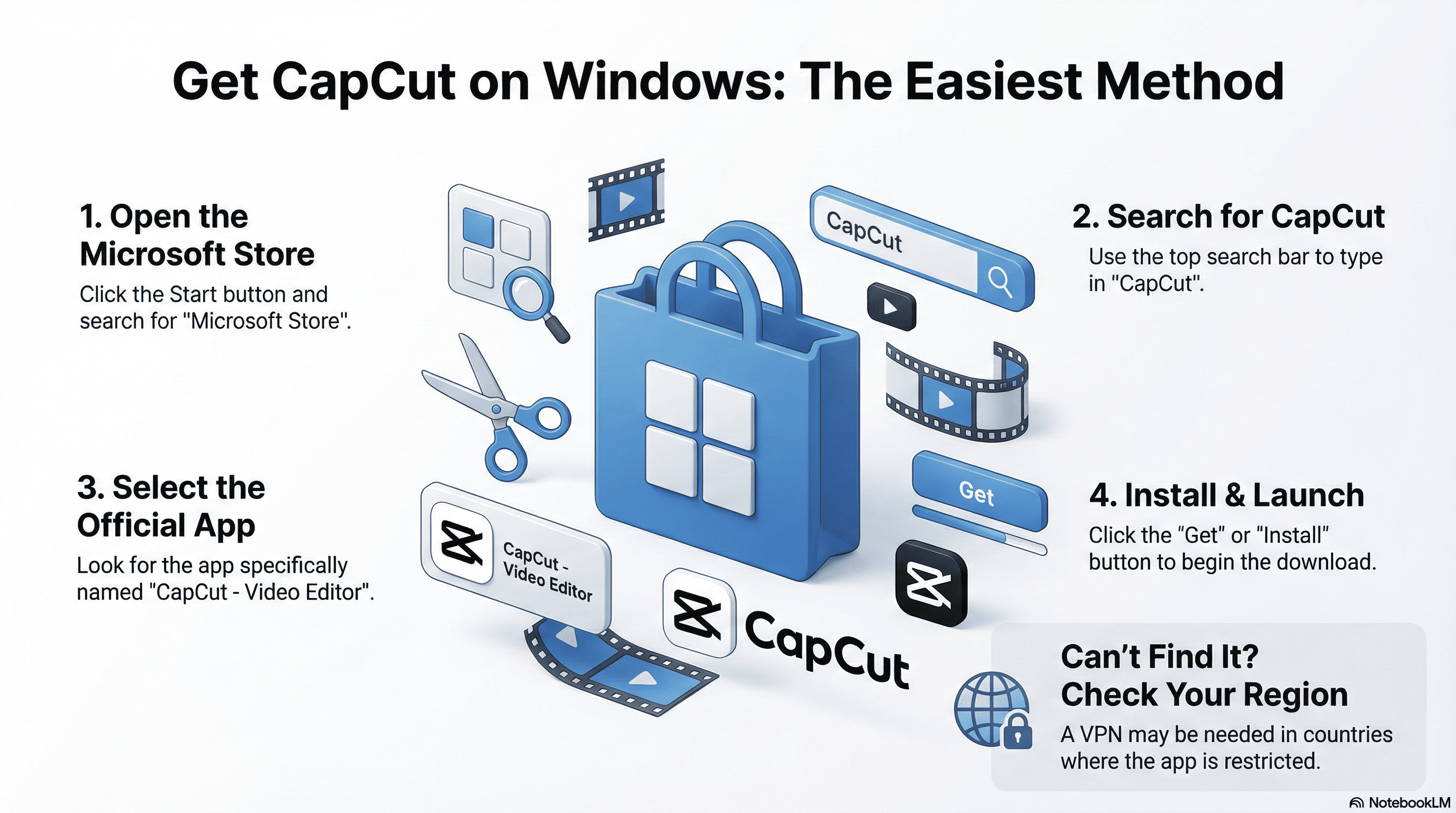
Once the download finishes, click Open, and you can start editing immediately.
Note for Users in Restricted Regions: If you cannot find CapCut in the Microsoft Store (due to regional restrictions in countries like India), you may need to use a VPN temporarily to access the listing or use Method 2 below.
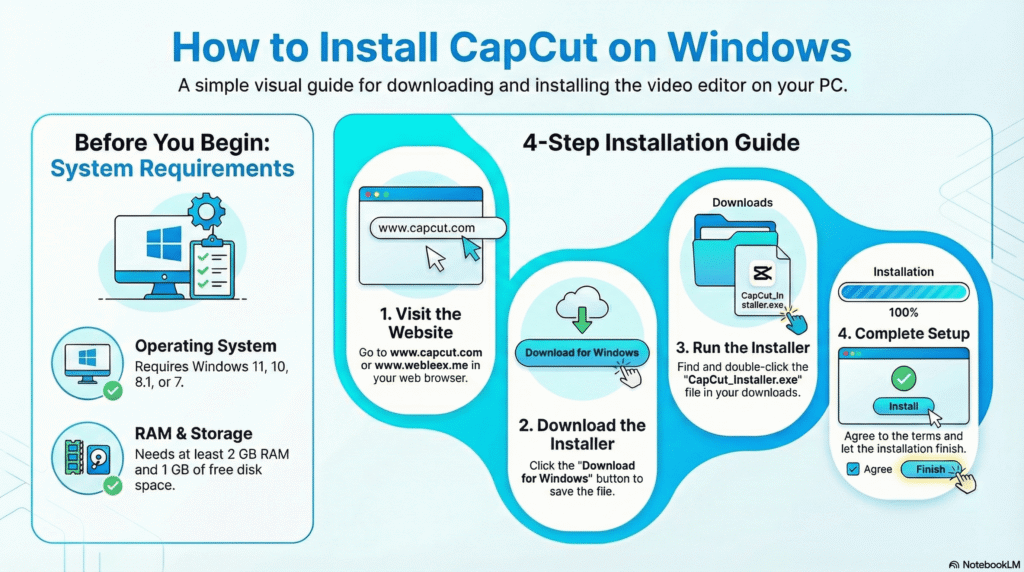
Method 2: Download via Official Website (.EXE File)
If the Microsoft Store isn’t working for you, you can download the installer directly.
- Open your web browser (Chrome/Edge).
- Visit the official website:
www.capcut.comorwww.webleex.com - On the homepage, click the button that says “Download for Windows”.
- A file named
CapCut_Installer.exewill start downloading. - Double-click the file to launch the installer.
- Agree to the terms and let the installation complete.
Key Features of CapCut Desktop Version
Now that you have installed it, here is what you get in the PC version compared to the mobile app:
- Keyframe Animation: Precise control over your animations.
- Auto Captions: Generate subtitles for your videos in one click.
- Tracking: Motion tracking is much easier with a mouse cursor.
- Shortcuts: Use
Ctrl + Bto split andDeleteto remove clips instantly.
Frequently Asked Questions (FAQs)
Q1: Is CapCut for PC free? Yes, the official desktop version is free to use. There is a “Pro” subscription available for advanced features, but the free version is powerful enough for most creators.
Q2: Do I need BlueStacks to run CapCut? No! That is exactly what this guide is about. The official version runs natively on Windows, so you do not need BlueStacks, Nox, or any other emulator.
Q3: Does the PC version have a watermark? CapCut allows you to remove the ending watermark easily. Simply delete the ending clip from the timeline, or sign in to your account to export without watermarks.
Final Verdict
Installing CapCut on PC without an emulator is the best decision for any content creator. It saves your computer’s resources and gives you a professional editing experience.
Ready to edit? Go ahead and download it now using the steps above!
(If you found this guide helpful, check out our Shop Page for premium video editing assets and templates!)
Nice