
WordPress Robots Txt Optimization Guide: Master Your Site’s Crawl Control
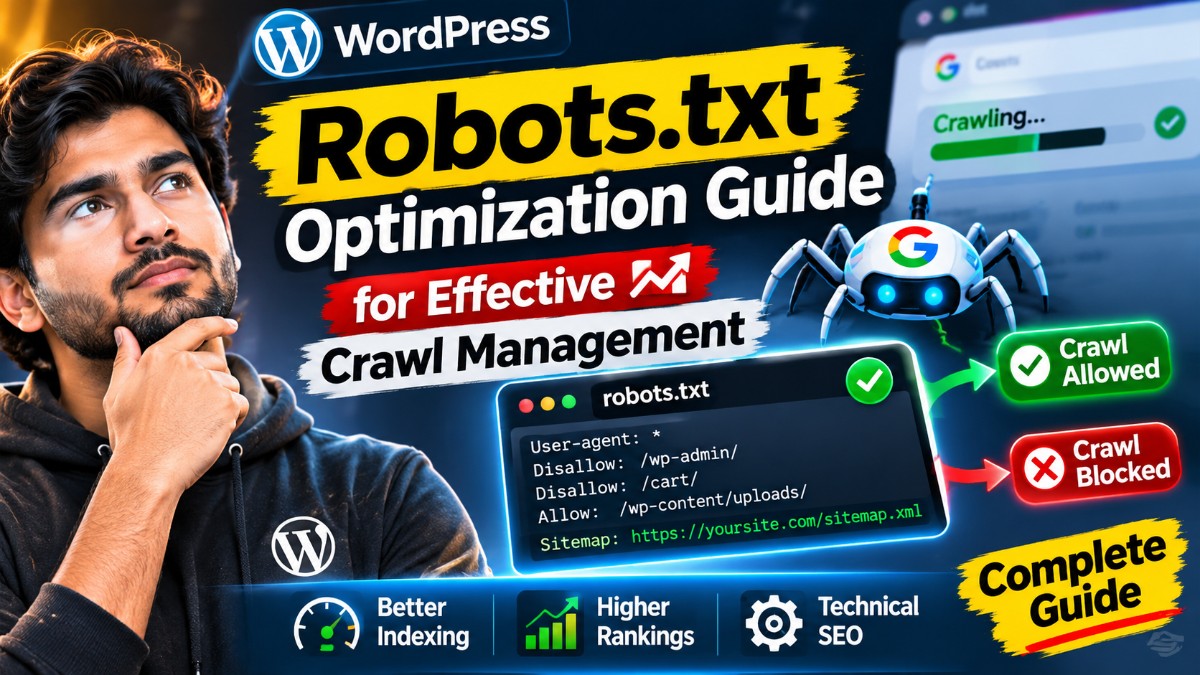
Understanding and optimizing your WordPress robots.txt file is a crucial step in managing how search engines crawl and index your website. This guide walks you through the essentials of creating, editing, and troubleshooting your robots.txt file to ensure your site’s SEO potential is fully realized while avoiding common pitfalls that can harm your rankings or visibility. By mastering your site’s crawl control, you can improve indexing efficiency, protect sensitive content, and enhance your overall search engine performance.
WordPress robots txt optimization guide: What Is the Robots.txt File and Why Does It Matter for WordPress?
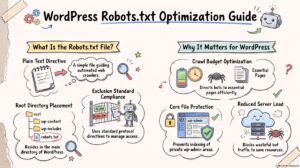
The robots.txt file is a simple text file placed at the root of your WordPress website that gives instructions to search engine crawlers about which pages or sections they can or cannot access. Proper use of this file helps prevent indexing of duplicate content, private pages, or resource-heavy areas, improving crawl efficiency and preserving your site’s SEO health.
How Robots.txt Works with Search Engines
When a search engine crawler visits your site, it first checks the robots.txt file to determine if there are any restrictions. It then follows these rules to decide which URLs to crawl or avoid. It’s important to note that robots.txt directives are advisory—search engines respect them but are not legally bound to do so. For example, if other websites link to a page blocked by robots.txt, that page might still appear in search results without a description snippet.
Additionally, robots.txt cannot prevent indexing of content if crawlers find the URLs elsewhere; it only controls crawling. To prevent indexing, you should use meta tags like noindex or HTTP headers.
Default WordPress Robots.txt Behavior
WordPress automatically generates a virtual robots.txt file if none exists physically on your server. This default allows full crawling of your site except for some admin and core folders such as /wp-admin/ and /wp-includes/. However, this default is often too permissive or not tailored to your specific SEO needs, making manual optimization important.
For example, the default virtual robots.txt might look like this:
User-agent: *
Disallow: /wp-admin/
Allow: /wp-admin/admin-ajax.php
This blocks access to the admin dashboard but allows AJAX calls necessary for frontend functionality. However, it does not address other areas like archives or resource files that may require blocking for SEO reasons.
How to Safely Access and Edit Your WordPress Robots.txt File
Before making any changes, it’s essential to back up your website and ensure you have access to your hosting control panel or FTP client. Editing robots.txt incorrectly can block important pages from search engines, causing traffic loss and visibility issues.
Methods to Edit Robots.txt
- Via WordPress SEO Plugins: Plugins like Yoast SEO or Rank Math provide a user-friendly interface to edit your robots.txt file without FTP. This method is recommended for beginners because it reduces the risk of syntax errors and allows quick rollback.
- Using FTP or File Manager: Access your site’s root directory (usually
public_htmlorwww) and edit or create therobots.txtfile using a plain text editor such as Notepad++ or VS Code. Ensure the file is saved with UTF-8 encoding and no BOM to avoid formatting issues. - Through Hosting Control Panel: Many hosts include file managers where you can create or edit files in your site root. This is convenient if you don’t want to use FTP but still want direct file access.
Important Precautions
- Always create a backup of your current
robots.txtfile and your entire site before editing, so you can restore if something goes wrong. - Use plain text editors to avoid hidden characters or formatting that can invalidate your file.
- Test changes on a staging environment if possible to prevent downtime or SEO damage on your live site.
- Check your site’s canonical URLs and sitemap settings to avoid conflicts between your robots.txt directives and other SEO configurations.
- After editing, verify the file’s syntax and behavior using tools like Google Search Console or third-party robots.txt validators.
Core Components of an Optimized WordPress Robots.txt File
Optimizing your robots.txt file involves carefully specifying which parts of your WordPress site should be accessible to crawlers and which should not. Here are the key directives and examples to consider.
User-agent Directive
This directive defines which crawler the rules apply to. For example, User-agent: * applies to all bots, including Googlebot, Bingbot, and others. You can specify rules for individual bots by using their specific user-agent names.
Disallow Directive
This directive blocks crawlers from accessing specific files or directories. For example, Disallow: /wp-admin/ prevents bots from crawling your WordPress admin area. Remember that disallowing a directory does not prevent indexing if other pages link to its content.
Allow Directive
The Allow directive overrides a Disallow directive for specific URLs within a blocked directory. For instance, WordPress uses Allow: /wp-admin/admin-ajax.php to permit AJAX requests necessary for frontend functionality, even though the rest of /wp-admin/ is disallowed.
Sitemap Directive
This directive points crawlers to your XML sitemap, improving indexing efficiency by helping bots discover all your important URLs quickly. For example:
Sitemap: https://yoursite.com/sitemap_index.xml
Ensure your sitemap URL is correct and accessible.
Example of a Balanced Robots.txt for WordPress
User-agent: *
Disallow: /wp-admin/
Disallow: /wp-includes/
Disallow: /wp-login.php
Allow: /wp-admin/admin-ajax.php
Sitemap: https://yoursite.com/sitemap_index.xml
This configuration blocks sensitive areas like the admin dashboard, core includes, and login page while allowing necessary AJAX functionality and pointing to your sitemap. It strikes a balance between security and crawl accessibility.
Additional Considerations
Depending on your site’s structure, you might want to disallow other directories such as /cgi-bin/ or /trackback/ if unused. Avoid blocking essential resource files like CSS and JS that are needed for proper page rendering.
Advanced Optimization Techniques for WordPress Robots.txt
Beyond the basics, you can fine-tune your robots.txt for better SEO outcomes by targeting specific content types, managing duplicate content, and customizing crawler behavior.
Blocking Specific File Types
To prevent crawling of unnecessary file types such as PDFs or scripts that do not contribute to SEO or user experience, you can block them using wildcard patterns. For example:
User-agent: *
Disallow: /*.pdf$
Disallow: /*.js$
Note that blocking JavaScript files can negatively affect how Google renders your pages, so only block non-essential scripts. Blocking PDFs might be useful if you have many downloadable files that dilute crawl budget.
Handling Duplicate Content
WordPress generates archive pages for categories, tags, authors, and dates that can create duplicate content issues. To mitigate this, you can block crawling of these archives if they don’t add unique value:
User-agent: *
Disallow: /category/
Disallow: /tag/
Disallow: /author/
Disallow: /date/
Alternatively, use canonical tags on these pages or noindex meta tags if you want to allow crawling but prevent indexing.
Allowing Googlebot Specific Access
You can create specific rules for Googlebot if you want to allow or disallow certain areas differently from other bots. For example:
User-agent: Googlebot
Allow: /special-content/
Disallow: /private/
This is useful if you have content intended only for Google’s crawler or want to restrict other bots more aggressively.
Using Crawl-delay (With Caution)
The crawl-delay directive instructs some crawlers to wait between requests, reducing server load. However, Google ignores this directive, so it only affects bots like Bing or Yandex. Use it cautiously as it can slow down indexing:
User-agent: Bingbot
Crawl-delay: 10
Before implementing, monitor your server load and traffic to ensure crawl-delay is necessary.
Combining Robots.txt with Other SEO Tools
Robots.txt should be part of a broader SEO strategy including meta tags, canonical URLs, and sitemap management. For example, use noindex meta tags on pages you want to exclude from search results but still allow crawlers to access. This layered approach ensures better control over your site’s visibility.
Common Errors and Troubleshooting Robots.txt Issues
Misconfigured robots.txt files can cause serious SEO problems, including blocking your entire site or important resources. Here’s how to identify and fix common mistakes.
Accidentally Blocking Entire Site
A common error is disallowing the root directory /, which blocks all crawling. For example:
User-agent: *
Disallow: /
This directive tells all bots not to crawl any page, effectively removing your site from search results. Always double-check that you’re not blocking the root unless intentionally taking the site offline.
Conflicting Rules
Ensure that specific Allow and Disallow rules do not contradict each other. For example, if you disallow /wp-admin/ but allow /wp-admin/admin-ajax.php, the order matters because some crawlers follow the most specific rule. Misordering or overlapping patterns can confuse bots.
Testing Your Robots.txt
Use tools like Google Search Console’s Robots Testing Tool to verify your file’s syntax and effect on URLs. This tool lets you simulate how Googlebot interprets your robots.txt and helps catch errors before they impact SEO.
Search Engine Caching
Remember that changes to robots.txt may take time to reflect in search results due to crawler caching. Google typically re-fetches robots.txt frequently, but other engines may have longer delays. Avoid making frequent drastic changes to minimize indexing disruptions.
How to Confirm Your Robots.txt Optimization Is Working
After editing, confirm that your robots.txt file is accessible and functioning as intended to ensure your crawl control strategy is effective.
Check Accessibility
Visit https://yourdomain.com/robots.txt in a browser to verify the file is live and correctly formatted. The file should be plain text, readable, and free of syntax errors. If you see a 404 error or a server error, your robots.txt is not accessible.
Use Google Search Console
Submit or re-submit your robots.txt in Google Search Console under the “Robots.txt Tester” section. Use the testing tool to check if specific URLs are blocked or allowed as expected. This helps ensure Googlebot can crawl your site appropriately.
Monitor Crawl Stats and Index Coverage
Track crawl errors and index coverage reports in Search Console to detect unexpected blocking or indexing issues. If you notice a drop in indexed pages or crawl errors related to blocked resources, revisit your robots.txt directives.
Use Server Logs for Verification
Analyzing server logs can provide insight into how bots interact with your site and whether they respect your robots.txt rules. Look for 403 or 404 errors on blocked URLs, which indicate bots are attempting to crawl disallowed areas.
Practical Checklist for WordPress Robots.txt Optimization
- Backup your site and
robots.txtfile before changes. - Decide which pages/directories to block or allow based on your SEO strategy and site structure.
- Edit the
robots.txtfile safely via plugins or FTP, using plain text editors. - Include a sitemap directive for efficient crawling and indexing.
- Test your
robots.txtsyntax with online tools or Google Search Console. - Monitor your site’s crawl stats and search indexing regularly to catch issues early.
- Adjust the file as your site structure or SEO priorities evolve, especially after major site changes.
- Complement robots.txt optimization with meta tags, canonical URLs, and sitemap management.
Frequently Asked Questions About WordPress Robots.txt Optimization
Can I block WordPress admin pages from search engines?
Yes, it is recommended to disallow /wp-admin/ and /wp-login.php in your robots.txt to prevent crawling of sensitive admin pages. This helps protect your backend from unnecessary bot traffic and potential security risks. Example:
User-agent: *
Disallow: /wp-admin/
Disallow: /wp-login.php
Will blocking resources like CSS or JS hurt my SEO?
Blocking essential CSS or JS files can negatively affect how Google renders your pages and may harm rankings. Google uses these resources to understand your page layout and content. Only block non-critical resources that do not affect rendering or user experience.
How do I handle robots.txt if I use a caching or security plugin?
Some caching or security plugins manage or override your robots.txt file automatically. Check the plugin settings to avoid conflicts and ensure your custom rules remain effective. If the plugin generates a virtual robots.txt, you might need to disable that feature to use a physical file instead.
Is robots.txt enough to keep private content out of search results?
No, robots.txt only advises crawlers not to crawl content but does not prevent indexing if other pages link to it. To keep content private, use noindex meta tags, HTTP authentication, or password protection. Robots.txt should be part of a multi-layered security and SEO strategy.
Can I use wildcards and regular expressions in robots.txt?
Robots.txt supports limited pattern matching such as * for wildcards and $ to indicate the end of a URL. However, it does not support full regular expressions. Use these patterns carefully to avoid unintentionally blocking URLs.
Conclusion and Next Steps
Optimizing your WordPress robots.txt file is a foundational technical SEO task that helps control crawler behavior and protects your site’s search presence. Start by auditing your current file, back up your site, and implement clear, precise directives tailored to your content and SEO goals. Use available tools to test and monitor effects continuously to ensure your crawl control strategy remains effective as your site evolves.
For deeper SEO improvements, consider following our SEO Audit Checklist Guide: Complete Website Optimization Steps and our SEO Keyword Research for Beginners Guide to complement your crawl control strategy with effective content optimization.
Official Resources and Further Reading
These official resources are useful for checking the documentation and maintaining your setup as tools change.