
On Page SEO for WordPress Guide: Step-by-Step Optimization for Better Rankings
If you want your WordPress website to attract more organic traffic and rank higher in search engines, understanding on page SEO is essential. This comprehensive guide walks you through practical steps and technical settings to optimize your WordPress pages effectively. Whether you are a beginner or looking to refine your SEO skills, you will find actionable advice that covers content, structure, performance, and technical aspects. By mastering on page SEO for WordPress, you ensure your site not only appeals to search engines but also delivers a seamless user experience that keeps visitors engaged.
Understanding On Page SEO and Its Importance for WordPress
On page SEO refers to all the optimizations you make directly on your website to improve its search engine rankings. This encompasses a wide range of factors such as content quality, keyword usage, meta tags, internal linking, and technical elements like site speed and mobile usability. For WordPress websites, on page SEO is especially important because WordPress offers tremendous flexibility through themes and plugins but requires careful configuration to realize its SEO potential.
Effective on page SEO helps search engines understand your content contextually, improving your chances of ranking for relevant queries. It also enhances user experience by ensuring visitors find relevant, well-structured, and fast-loading pages, which reduces bounce rates and increases engagement metrics like time on site and pages per session. These behavioral signals can further influence your rankings.
For example, a WordPress blog post optimized with clear headings, relevant keywords, and fast loading times is more likely to rank higher than a similar post lacking these elements. Additionally, with WordPress’s ecosystem, leveraging SEO-friendly themes and plugins can simplify the process but requires understanding how these tools impact your site’s SEO.
Keyword Research: The Foundation of On Page SEO for WordPress
Before optimizing your pages, start with thorough keyword research. Identifying the terms your target audience searches for and understanding their intent is crucial. Use tools like Google Keyword Planner, SEMrush, or Ahrefs to find relevant keywords with a balance of search volume and competition. For instance, if you run a WordPress site about gardening, you might find “organic vegetable gardening tips” as a high-intent keyword with moderate competition.
When conducting keyword research, classify keywords into primary and secondary categories. Primary keywords represent the main focus of a page, while secondary keywords support and add context. This helps you avoid keyword stuffing and maintain natural content flow. For WordPress, map these keywords to specific pages or posts, ensuring each page targets a unique set of keywords to prevent cannibalization.
For example, a page targeting “best gardening tools” should not compete with a blog post targeting “organic vegetable gardening tips.” Assigning clear keyword targets helps search engines understand the distinct purpose of each page.
To integrate keywords safely, place your primary keyword in the page title, URL, first 100 words of content, headings, and meta description. Secondary keywords can be sprinkled throughout the body content and image alt attributes. Avoid overusing keywords in an unnatural way, as this can trigger penalties.
For a detailed step-by-step beginner-friendly approach, check out our SEO Keyword Research for Beginners Guide.
Optimizing Content and HTML Elements on WordPress Pages
Title Tags and Meta Descriptions
The title tag is one of the most critical on page SEO elements. It appears in search engine results pages (SERPs) as the clickable headline and should include your primary keyword naturally near the beginning. Keep it under 60 characters to avoid truncation, which can reduce click-through rates (CTR).
For example, instead of “Gardening Tips and Tools for Beginners – Comprehensive Guide,” a better title might be “Organic Vegetable Gardening Tips for Beginners.” This places the primary keyword upfront and is concise.
Meta descriptions provide a summary snippet in search results. Write compelling, clear descriptions around 140-160 characters that incorporate your primary keyword and entice clicks without keyword stuffing. Think of meta descriptions as your page’s advertisement in search results—make them engaging and relevant.
WordPress SEO plugins like Yoast SEO and Rank Math allow you to easily edit title tags and meta descriptions per page or post. Use their preview features to see how your snippets will appear in search results.
Heading Structure (H1, H2, H3)
Use a clear heading hierarchy to organize your content. Your page should have a single H1 tag containing the main topic including your primary keyword, followed by H2s and H3s that break down subtopics. This semantic structure helps search engines understand the content flow and improves readability for users.
For example, a blog post titled “Organic Vegetable Gardening Tips” would have the H1 as the title, H2s for sections like “Soil Preparation,” “Planting Techniques,” and “Pest Management,” and H3s for more detailed points under each section.
WordPress editors and many themes automatically assign the H1 tag to the post or page title, so avoid duplicating H1 tags within the content. Use H2 and H3 tags appropriately to maintain a logical structure.
URL Structure and Permalinks
WordPress lets you customize permalinks under Settings > Permalinks. Choose a simple, keyword-rich URL structure, like /category/primary-keyword/ or just /primary-keyword/. For example, https://example.com/organic-vegetable-gardening/ is preferable to https://example.com/?p=123.
A clean URL structure improves both user experience and search engine crawlability. Avoid unnecessary numbers, dates, or symbols that add no value and can confuse users or search engines.
Be cautious when changing permalink structures on an established site, as this can lead to broken links and loss of rankings. If you must change permalinks, implement 301 redirects from old URLs to new ones using plugins like Redirection or via your server configuration.
Image Optimization
Images enhance user engagement but can slow down your site if not optimized. Use descriptive filenames and alt text that naturally includes relevant keywords for accessibility and SEO. For example, an image of tomato plants could be named organic-tomato-plants.jpg with alt text “Organic tomato plants growing in raised garden beds.” This helps search engines understand the image content and improves accessibility for users with screen readers.
Serve images in modern formats like WebP, which offer better compression without quality loss, reducing page load times. Use responsive image techniques (e.g., srcset) to serve appropriately sized images for different devices.
Avoid lazy-loading critical hero images above the fold to prevent layout shifts, which negatively impact the Cumulative Layout Shift (CLS) metric. Aim for CLS <= 0.1 for optimal user experience.
To capture screenshots or examples of your SEO settings, use browser developer tools or WordPress plugins that preview SEO metadata. This is useful for verifying that your meta tags and structured data are correctly implemented.
Technical On Page SEO Settings in WordPress
Canonical URLs and Duplicate Content
WordPress sites can generate duplicate content through archives, tags, or pagination. Duplicate content confuses search engines and dilutes ranking signals. Use canonical URLs to tell search engines which version of a page to index.
SEO plugins like Yoast SEO or Rank Math automatically set canonical tags on pages and posts, but it’s important to verify these settings, especially on complex sites. For example, a blog post accessible via multiple URLs due to category or tag archives should have a canonical URL pointing to the main post URL.
Manually check canonical tags by viewing the page source or using SEO audit tools. Misconfigured canonical URLs can cause important pages to be ignored or cause indexing of unwanted duplicates.
Robots.txt and Crawl Management
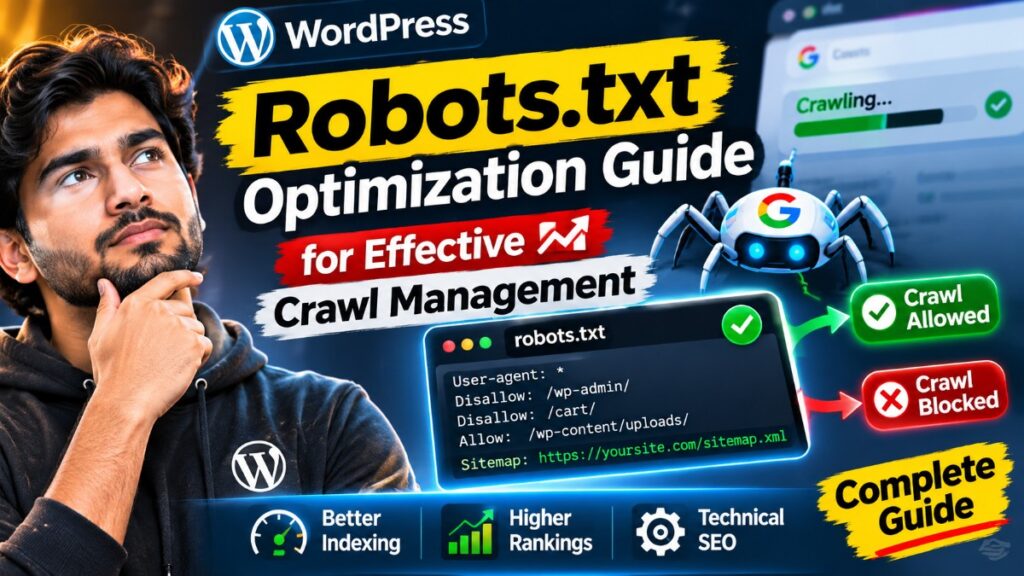
Control which parts of your site search engines can crawl using the robots.txt file. For example, you might want to block admin pages, login pages, or development directories to prevent them from appearing in search results.
However, misconfigured robots.txt can harm SEO by blocking important content unintentionally. For instance, blocking the entire /wp-content/uploads/ directory can prevent images from being indexed, reducing image search traffic.
Always test your robots.txt file using Google Search Console’s robots.txt Tester tool. For detailed guidance, see our WordPress Robots Txt Optimization Guide for Effective Crawl Management.
Sitemaps and Indexability
Ensure your XML sitemap is up to date and submitted to Google Search Console. WordPress SEO plugins generate sitemaps automatically, listing all important pages and posts.
Check that only indexable pages are included and that pages with noindex tags, such as thin content or private pages, are excluded. This prevents search engines from wasting crawl budget on low-value pages.
Regularly review your sitemap and Google Search Console coverage reports to identify and fix indexing issues.
HTTPS and Secure Site Configuration
SSL is a ranking factor and critical for user trust. Make sure your WordPress site runs on HTTPS and that all HTTP traffic is redirected to HTTPS using 301 redirects. This can be configured in your hosting control panel or via plugins like Really Simple SSL.
Avoid mixed content errors by updating all internal links, scripts, stylesheets, and images to use HTTPS URLs. Mixed content warnings can cause browsers to block resources, harming user experience and SEO.
Test your HTTPS implementation using tools like SSL Labs SSL Test to ensure proper configuration.
Improving WordPress Site Performance for SEO
Page speed and user experience metrics like Largest Contentful Paint (LCP <= 2.5s) and Interaction to Next Paint (INP <= 200ms) are key SEO ranking factors. Slow-loading pages frustrate users and increase bounce rates, negatively impacting rankings.
To improve performance:
- Use caching plugins (e.g., WP Rocket, W3 Total Cache) to deliver faster page loads by serving static HTML versions of your pages instead of dynamically generating them on each request. Configure caching properly to avoid serving stale content.
- Optimize images as described above by compressing them without quality loss and serving modern formats.
- Minify CSS, JavaScript, and HTML files to reduce file sizes and load times. Many caching plugins offer minification features, or you can use dedicated plugins like Autoptimize.
- Choose a reliable, fast hosting provider with good server response times and uptime guarantees. Managed WordPress hosting providers often optimize server environments for performance and security.
- Limit the use of heavy plugins that slow down your site. Audit your plugins regularly and deactivate or replace those that add excessive load times.
Regularly test your site speed using tools like Google PageSpeed Insights or GTmetrix and address flagged issues. For example, if PageSpeed Insights reports render-blocking JavaScript, consider deferring or asynchronously loading scripts.
Implementing a Content Delivery Network (CDN) can also improve load times globally by serving your content from servers closer to your visitors.
Internal Linking and Content Structure for SEO
Internal linking helps distribute page authority (link equity) and improves crawlability by search engines. Link related posts and pages naturally using descriptive anchor text that provides context about the linked page’s content.
For example, if you mention “soil preparation” in a gardening post, link it to your dedicated “Soil Preparation Techniques” page using anchor text like “soil preparation techniques.” Avoid overusing exact-match keywords in links, as this can appear manipulative to search engines.
Use categories and tags thoughtfully to group content but avoid creating thin or duplicate content pages through excessive tags. For instance, having too many tags with only one or two posts each can dilute SEO value and confuse search engines.
Regularly audit your internal links to fix broken links and ensure logical navigation paths. Plugins like Link Whisper can assist in managing internal links effectively.
Common On Page SEO Errors and How to Troubleshoot Them
Duplicate Titles and Meta Descriptions
Duplicate meta tags confuse search engines and reduce ranking potential. This often happens when multiple pages have similar or default titles and descriptions, such as archives or paginated content.
Use SEO plugins to audit and fix duplicates. For example, Yoast SEO’s Search Appearance settings allow you to customize templates for titles and meta descriptions to avoid duplication. Manually check high-priority pages if needed.
Broken Links and 404 Errors
Broken links harm user experience and SEO by leading visitors to dead ends. Use tools like Broken Link Checker or Screaming Frog SEO Spider to identify broken links and fix or redirect 404 pages.
Implement 301 redirects for removed or moved content to preserve link equity.
Incorrect Robots or Noindex Settings
Accidentally blocking important pages via robots.txt or noindex tags can remove them from search results. Verify your settings in SEO plugins and Google Search Console coverage reports to ensure key pages are indexable.
For example, a common mistake is to set the entire site to noindex during development and forget to remove it upon launch.
Slow Page Load Times
Address slow loading by following the performance tips above and reviewing server logs for bottlenecks. Sometimes slow database queries or external scripts can delay page rendering.
Use tools like Query Monitor plugin to identify slow database queries or plugins causing delays.
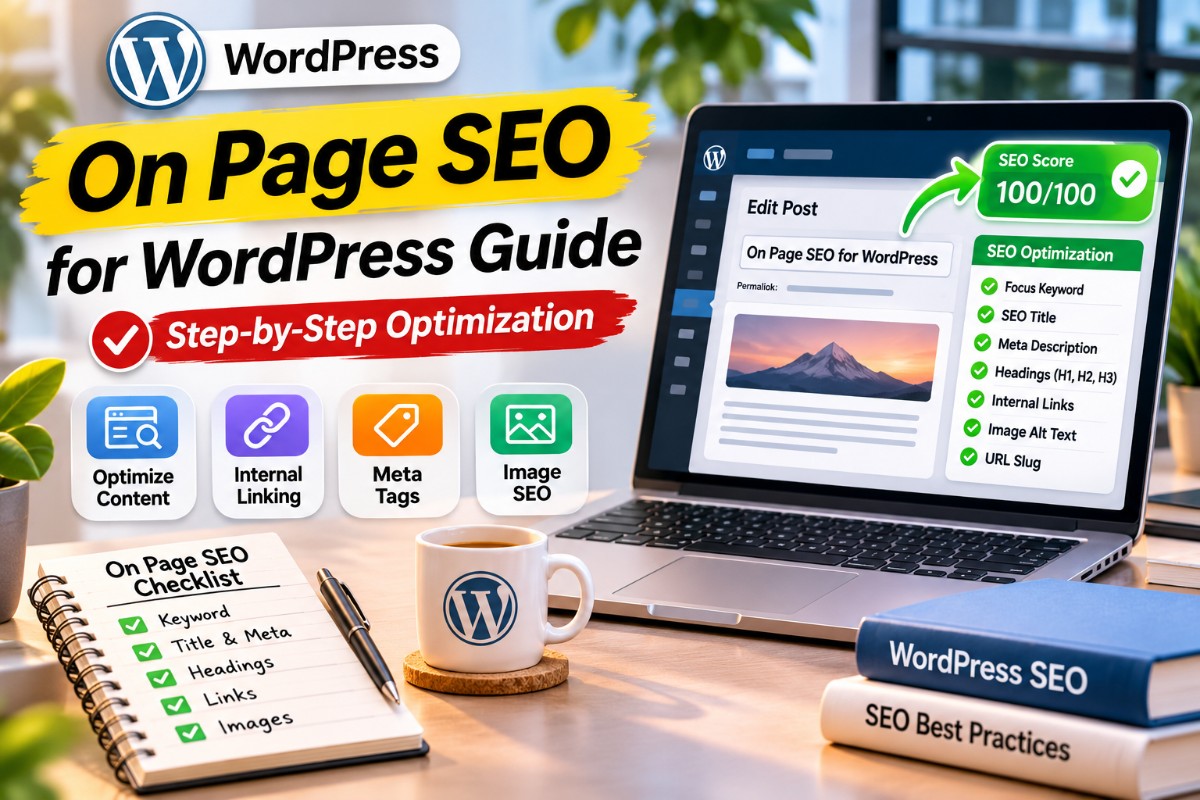
Checklist: On Page SEO for WordPress
- Conduct keyword research and assign keywords to pages.
- Optimize title tags and meta descriptions with keywords.
- Use clear heading hierarchy (H1, H2, H3) with keywords.
- Ensure SEO-friendly URL structure.
- Optimize images with descriptive alt text and modern formats.
- Set canonical URLs to prevent duplicate content.
- Configure robots.txt to allow important pages to be crawled.
- Submit and maintain XML sitemap in Google Search Console.
- Ensure site runs on HTTPS with proper redirects.
- Improve site speed with caching, minification, and optimized hosting.
- Build internal links with descriptive anchor text.
- Regularly audit for broken links, duplicates, and crawl errors.
FAQs on On Page SEO for WordPress Guide
1. How do I check if my WordPress on page SEO is effective?
Use SEO audit tools or plugins like Yoast SEO, Rank Math, or external tools such as SEMrush Site Audit to analyze your on page SEO. These tools provide insights into keyword usage, meta tags, content readability, and technical SEO factors.
Review rankings, traffic trends, page speed, and crawl reports in Google Search Console to confirm improvements. Tracking organic traffic growth and keyword rankings over time provides concrete evidence of SEO effectiveness.
2. Can I optimize on page SEO without a plugin?
Yes, you can manually edit meta tags, headings, and content through WordPress editors and your theme files. For example, you can add meta descriptions in the header.php file or use custom fields.
However, SEO plugins simplify management and reduce errors by automating tasks like sitemap generation, canonical tags, and noindex settings. They also provide user-friendly interfaces and real-time SEO analysis, making optimization more accessible.
3. How often should I update on page SEO on my WordPress site?
Regularly review your on page SEO, especially when adding new content or after major WordPress updates. Quarterly audits help identify and fix issues before they impact rankings.
Additionally, monitor changes in search trends and update your content to reflect new keywords or user intent. Refreshing old posts with updated information and SEO improvements can boost their performance.
4. What are the risks of making technical SEO changes on a live WordPress site?
Incorrect changes can cause pages to become non-indexable, broken links, or performance issues, leading to traffic loss and ranking drops. For example, accidentally applying a noindex tag site-wide or misconfiguring robots.txt can remove your entire site from search results.
Always back up your site before making changes and test them in a staging environment. Use version control or deployment tools if available. Monitor Google Search Console and analytics closely after changes to detect issues early.
Conclusion and Next Steps
Mastering on page SEO for WordPress involves both content and technical optimizations. Start by researching keywords and optimizing your page titles, meta descriptions, and content structure. Then ensure your technical settings like canonical URLs, robots.txt, HTTPS, and site speed are properly configured. Use SEO plugins to streamline management and regularly audit your site to catch issues early.
For further improvement, explore advanced topics such as structured data, schema markup, and local SEO strategies, which can enhance your search visibility with rich snippets and better targeting.
If you want to deepen your overall SEO knowledge, our SEO Audit Checklist Guide offers a comprehensive framework to optimize your entire website effectively.
Official Resources and Further Reading
These official resources are useful for checking the documentation and maintaining your setup as tools change.